Run a Club
Create a club, set up groups, and keep players coming back.
How do I create a pickleball club?
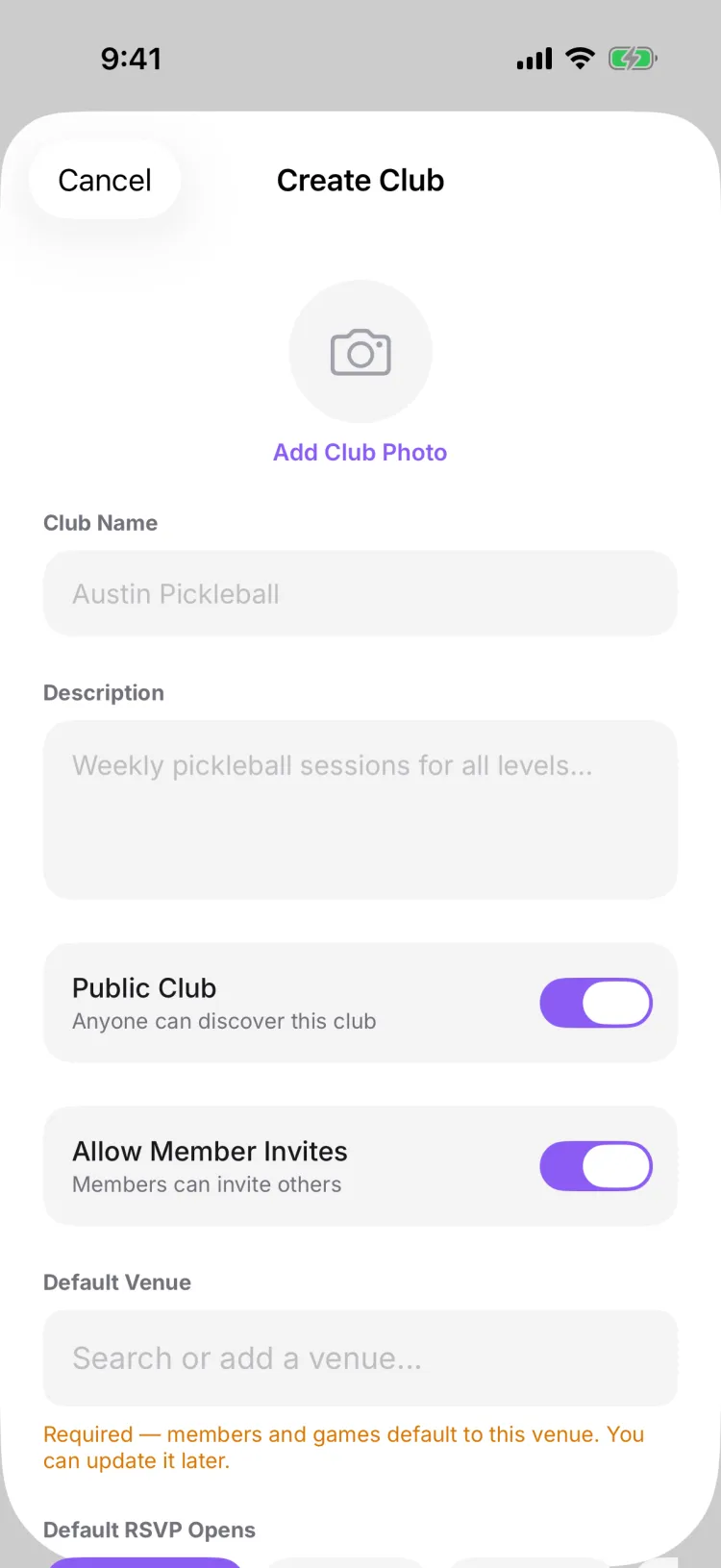
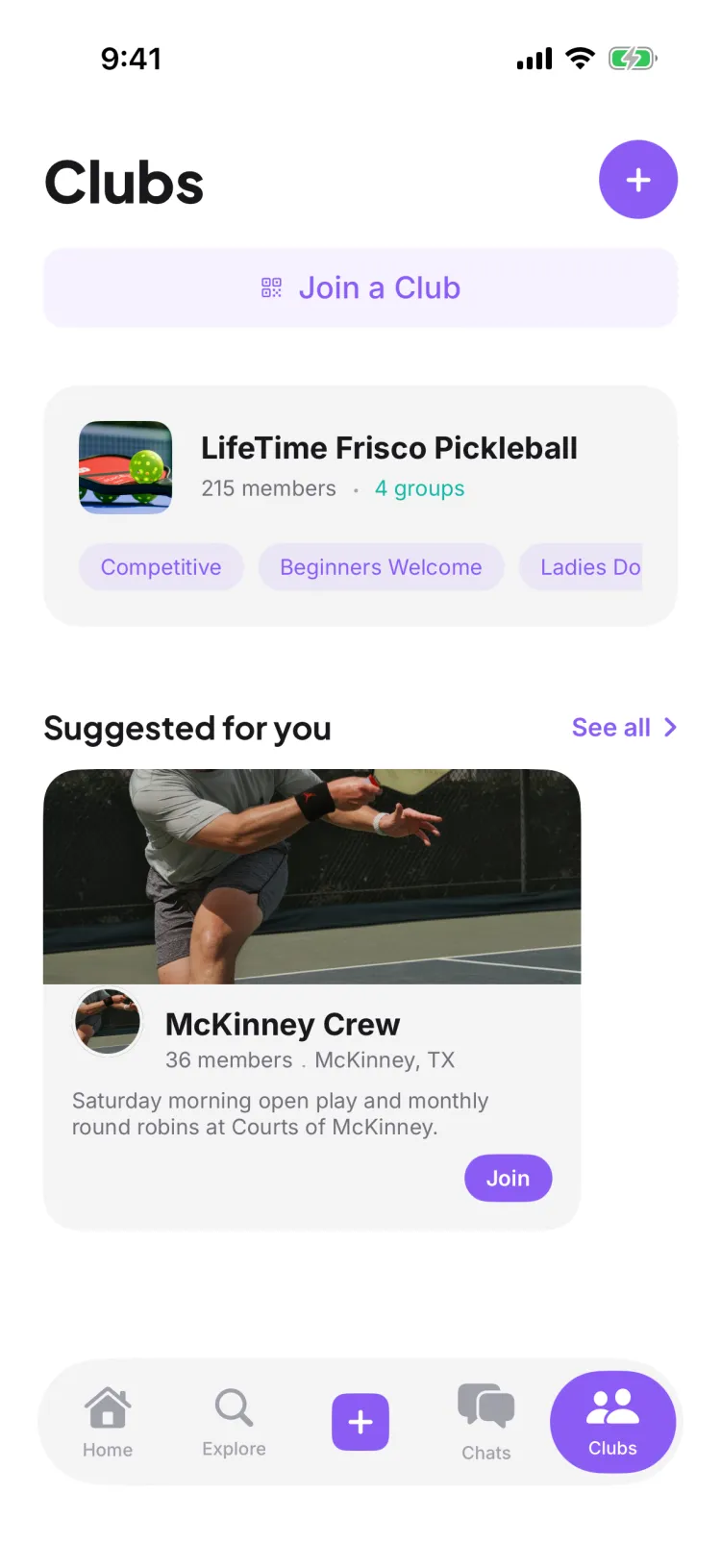
Open the Clubs tab and tap the + button. Give your club a name, pick a default venue for its home courts, choose whether it's public or private, and tap Create Club. Whoever creates the club is set as its owner automatically — no extra step.
What's the difference between a public and a private club?
Visibility controls how people find the club. A public club shows up in Discover and invite-holders join instantly. A private club is hidden from browsing, so a stranger who finds it must request to join — but people you invite still join instantly unless you separately turn on 'Require approval to join' in Edit Club (off by default). Android adds a third option, Invite Only. You can change visibility later.
Do I have to choose a venue to create a club?
Yes. The Create Club button stays greyed out until you've entered a name and picked a default venue — new games default to that venue, and you can change it later. Everything else on the form (cover photo, description, member-invite permissions) is optional.
Who becomes the admin when I create a club?
You do. The person who creates a club is its owner with full admin control. If you turn on 'Require approval to join' in Edit Club — or when a stranger requests to join a private club from Discover — those requests land in a queue for you to approve. You can promote trusted members to admin later so you're not running everything solo.
What do I do after creating my club?
Invite people. Every club comes with an invite you can share as a link, a QR code, or a short join code — that's the number-one thing that turns a brand-new club into a busy one. Then create your first game so there's a reason to show up.
What's the fastest way to add members to my club?
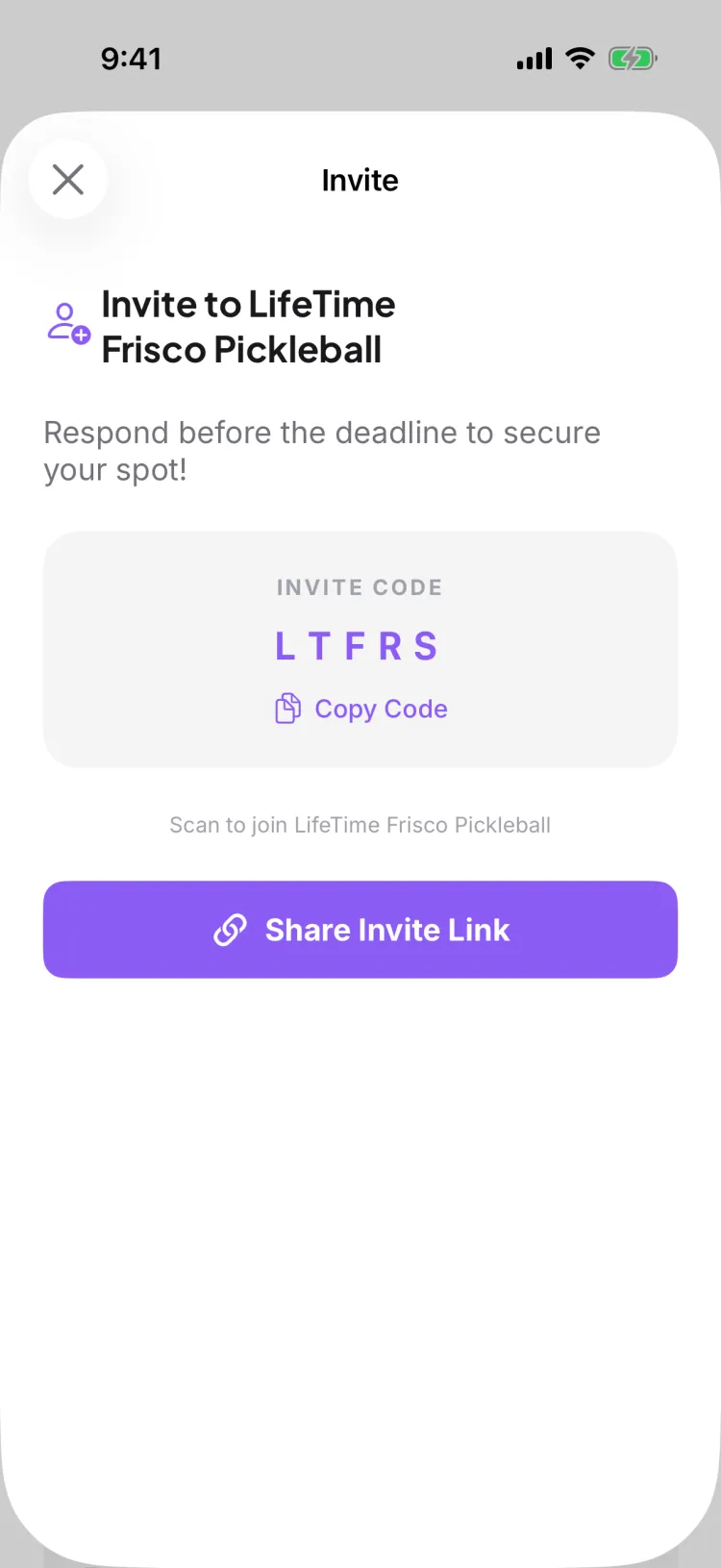
Share your club invite. Pikel gives every club a link, a QR code, and a short join code — post the link in a group chat, print the QR for the court, or read out the code in person. Anyone who uses it joins in a couple of taps.
Can I control who joins my club?
Yes. A public club lets people join instantly; a private club sends join requests to an approval queue so admins approve or deny each one. You choose which when you create the club, and you can require approval whenever you want a gate.
Who can approve new members?
Club admins — the owner, admins, and co-hosts all have admin-level permissions. Roles let you share the load: promote a trusted regular to co-host and they can approve requests and help run things.
How do I keep members coming back, not just joining?
Give them a reason to return. A recurring weekly series puts your game on repeat, and the club chat and feed keep the group talking between sessions. Growth is retention plus invites — the app supports both.
How do I leave a club?
Open the club, tap the gear to open its settings, scroll to the Danger Zone, and tap Leave Club — then confirm. It removes you from that one club (and any groups inside it) while your account and every other club you belong to stay exactly as they are.
I'm the club owner — why can't I see Leave Club?
Owners don't get a Leave Club button; you see Delete Club instead. Pikel won't let the last owner walk away and leave a club with nobody in charge — so if you're the sole owner you either keep the club or delete it, rather than orphaning it.
Does leaving a club delete my account or my other clubs?
No. Leaving only removes your membership in that one club, plus any groups inside it. Your Pikel account, your games in other clubs, and every other membership are untouched — they all still show up in your Clubs tab.
Can I rejoin a club after I leave?
Yes. If the club is public, you can find it again in Explore and rejoin with one tap. If it's private or invite-only, leaving doesn't hold your spot — you'll need a fresh link, QR code, or five-character join code from an admin to come back.
What happens to the club's groups when I leave?
Leaving the club also removes you from any groups that live inside it, in one step. You don't have to leave each group separately first — the club and its groups let go of you together.
Who can link a club to DUPR?
Club admins. Linking DUPR is an admin action in club settings — owners, admins, and co-hosts can do it. Regular members don't see the option, and don't need to; they just link their own DUPR account from their profile.
What do members need to do after the club is linked?
Each member links their personal DUPR account from their profile. Once both the club and the player are linked, scores from rated games sync to DUPR with one tap after each match.
Does linking the club change existing member ratings?
No. Linking the club connects your club's rated play to DUPR going forward. Each player's rating still comes from their own match history — the club link just makes sure your games get reported.
Can I unlink DUPR later?
Yes. The DUPR link lives in club settings and is managed by admins, so you stay in control of whether your club's rated play reports to DUPR.
How do I set up groups inside a club?
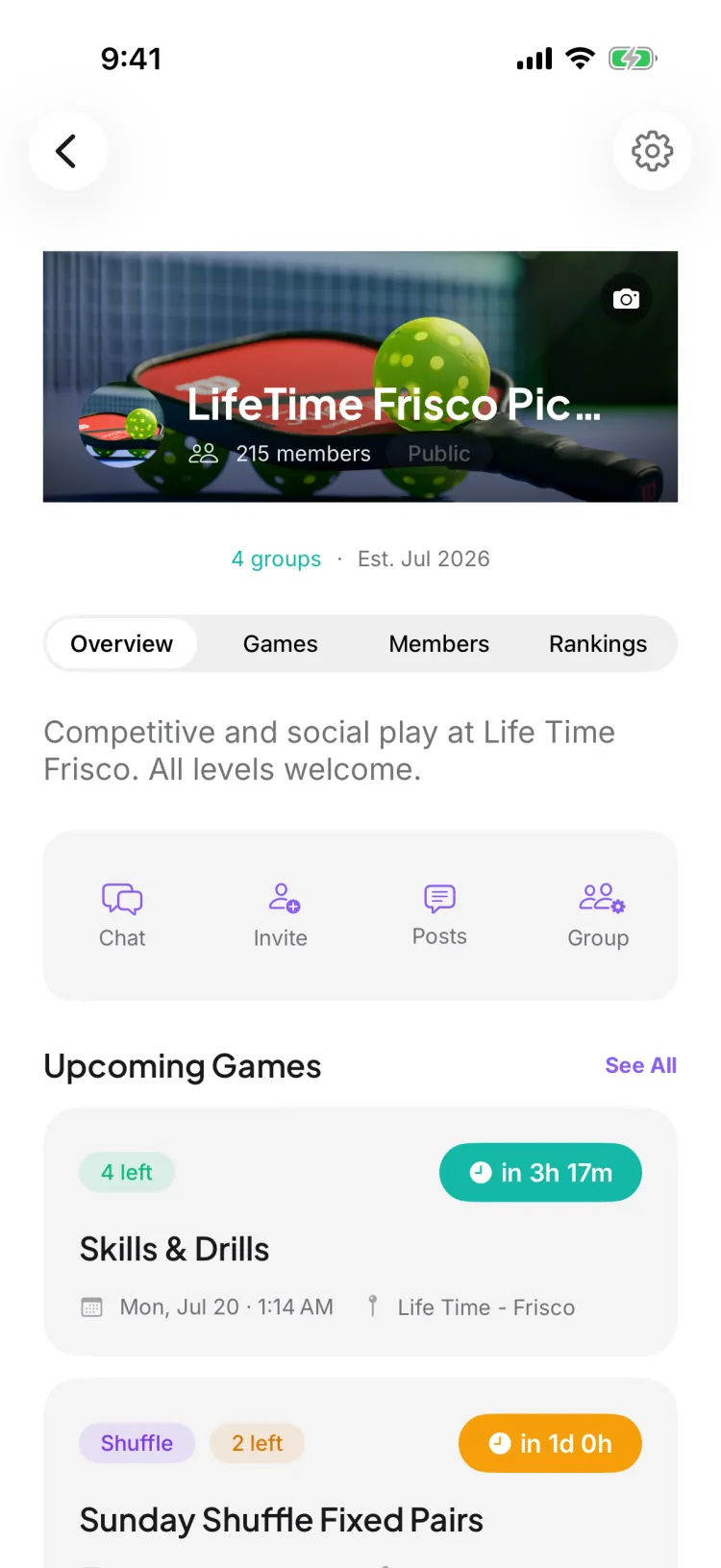
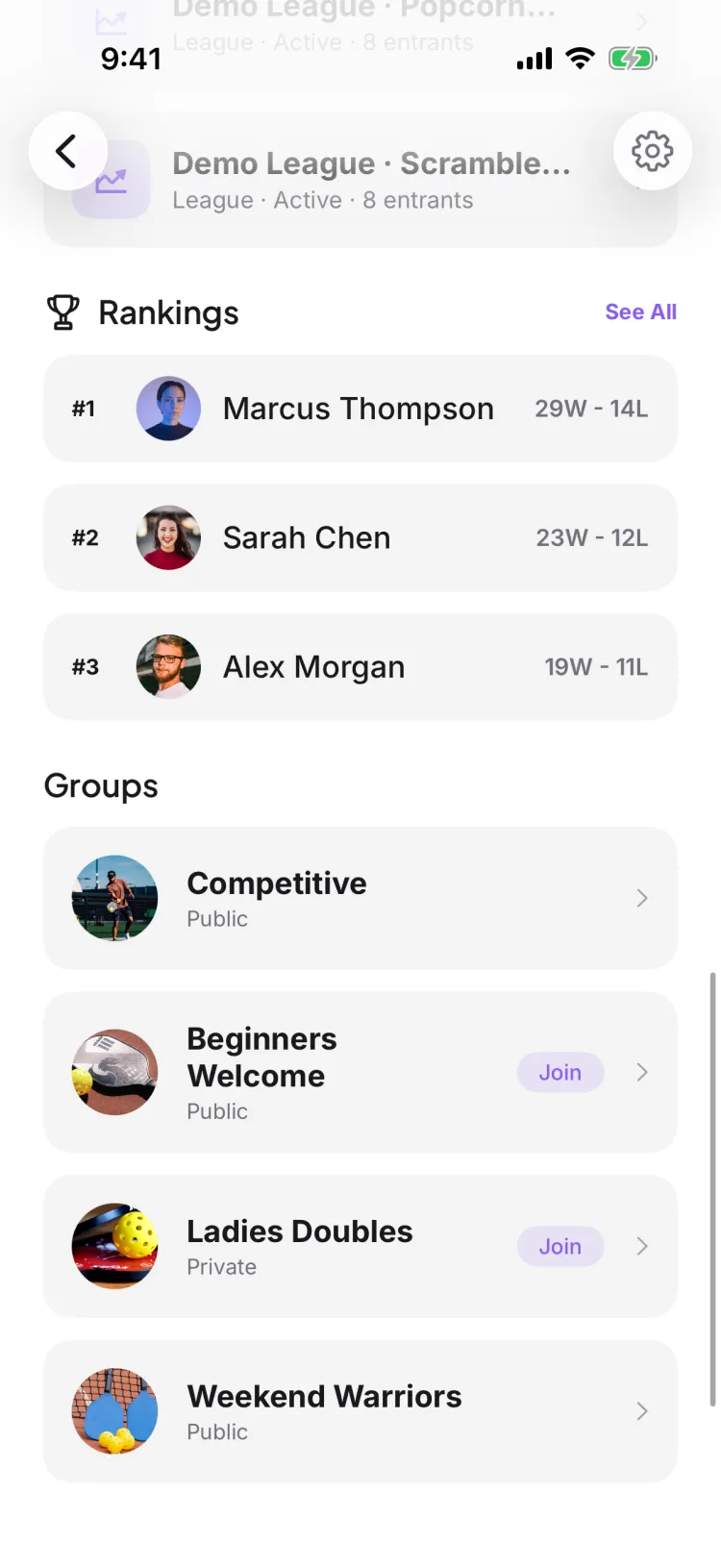
Open your club and tap Group to create a subgroup — say a 3.5 ladder or a Tuesday-morning crew. Each group gets its own chat, its own games, and its own notification settings, so you can split a big club into the smaller circles that actually play together without spinning up separate clubs. Members join the groups that fit them.
Who can create a group in a club?
Only a club admin or owner. The Create Group action shows up in the club's action row for admins and owners only — regular members can join groups but can't create them. It's the same on iOS and Android.
What's the difference between a public and private group?
You pick when you create the group. A public group lets anyone in the club join instantly; a private group means new members need admin approval, and their requests land in the group's own Join Requests queue for an admin to approve. The choice only affects who can join that group — everyone's already inside the club.
Does each group get its own chat and notifications?
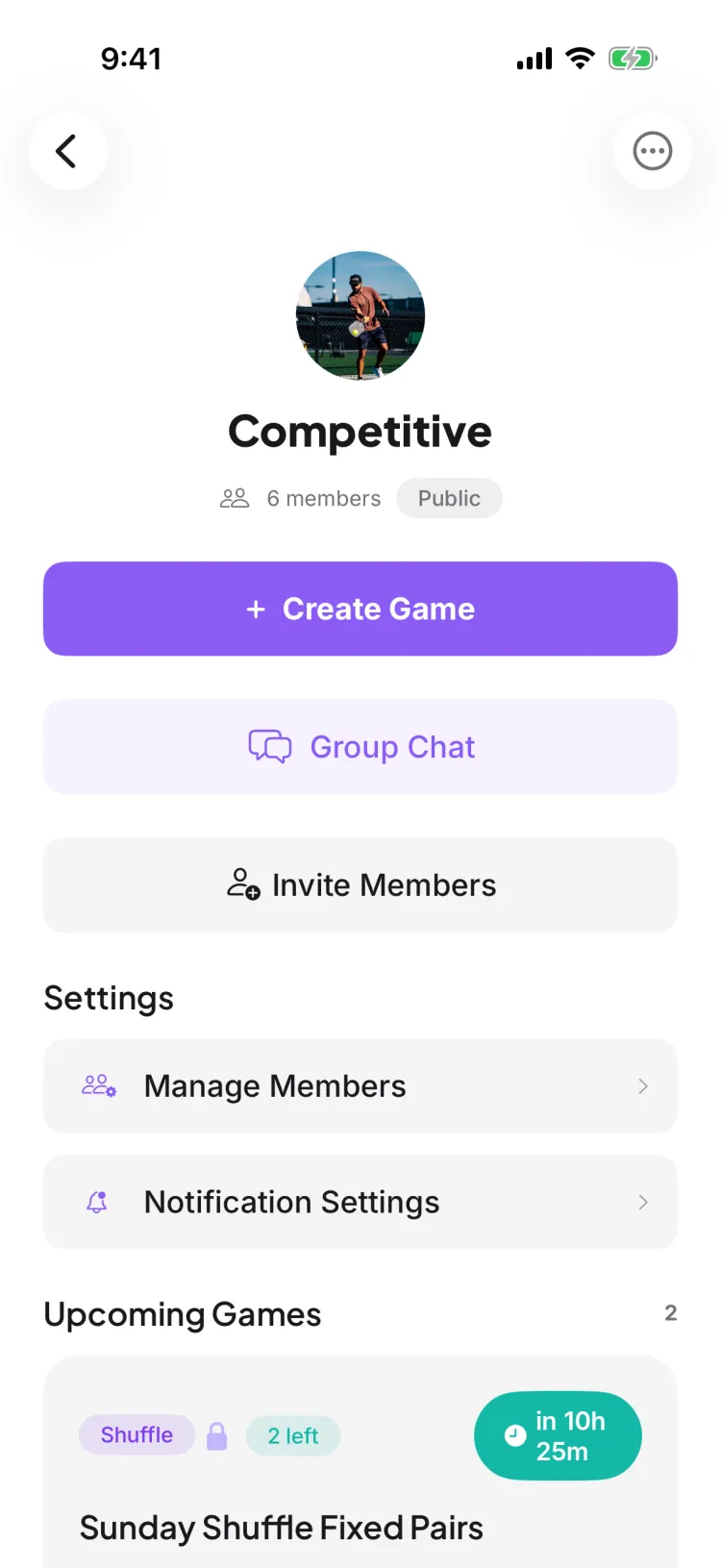
Yes. Every group has its own Group Chat, and its own Notification Settings that any member can open. You can mute the whole group, or keep it on and toggle Game Reminders, RSVP Updates, Score Updates, and Group Messages individually — the settings are yours, saved per member.
Can I run games inside a group?
Yes. Each group has its own Create Game button, and games you start there are automatically scoped to that group — they show up under the group's Upcoming and Past games. It's a clean way to keep a ladder's or a crew's schedule separate from the rest of the club.
How do I create a pickleball club?
Tap to create a club and choose its visibility: public clubs let anyone join instantly, while private clubs route join requests to an approval queue. That's the only visibility choice — there's no hidden third state. Once it exists, invite members with a link, QR code, or join code to start filling games.
How do I invite members to my club?
Open your club and tap Invite to get everything you need to bring people in: a short invite code, a QR code to scan in person, and a shareable link. Send whichever is easiest — the link and QR both drop new members straight onto your club's join screen. Filling your club is the single biggest step toward full games.
How do I set up groups inside a club?
Groups are subgroups inside a club — say a 3.5 ladder or a Tuesday-morning crew — and each one gets its own chat and notification settings. Use them to split a big club into the smaller circles that actually play together, without spinning up separate clubs. Members join the groups that fit them.
How do I leave a club?
Open the club, go to its settings, and tap Leave Club — it removes you from that one club while your account and every other membership stay intact. If you're the club's last owner, Pikel blocks the leave until you hand ownership to someone else first, so a club is never left ownerless.