How to Edit Your Pikel Profile


Your Pikel profile is how the rest of your club sees you — the name on the RSVP list, the face on the round-robin bracket, the rating that helps an organizer balance teams. Keeping it current takes about fifteen seconds. Here's exactly what you can change, and what's locked (and why).
Step 1 — Open the Profile tab and tap Edit Profile
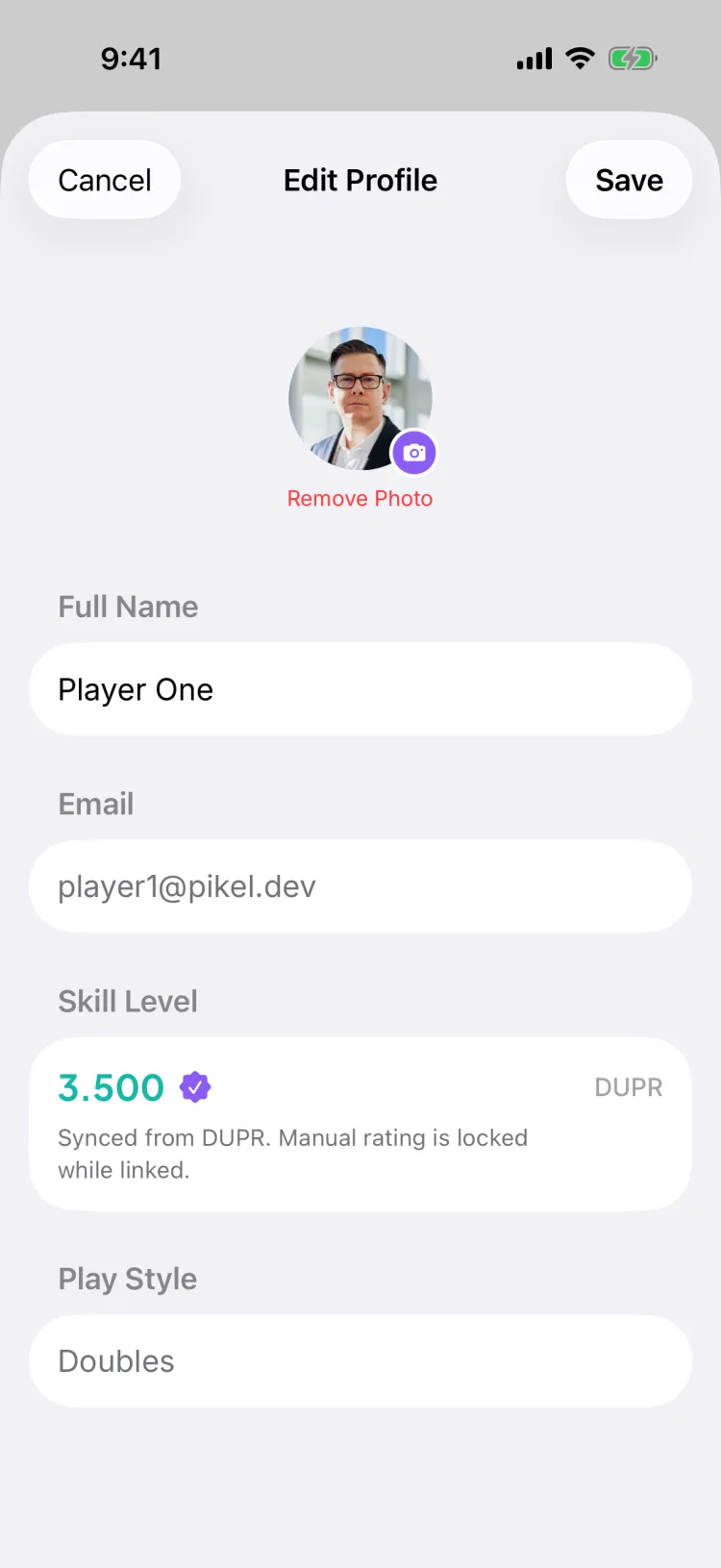
Head to the Profile tab. Your avatar and name sit right at the top. Tap the Edit Profile button just below them and the screen opens — on iPhone it's a sheet with Cancel and Save in the corners; on Android it's a full screen with a back arrow. (On iPhone you can also tap your avatar to open it; on Android the avatar's camera badge changes your photo directly instead.) Same fields either way.
Step 2 — Change your display name
The Full Name field is the first thing you can edit. This is the name every other player sees — on game invites, in club chats, on the leaderboard — so make it the name your pickleball crew would recognize. Tap the field, clear it, and type the new one.
One rule: you can't save a blank name. If you empty the field, the Save button greys out until you put something back. That's the only field Pikel insists on.
Step 3 — Add or change your profile photo
Tap the camera badge on the corner of your avatar and Pikel opens your photo library. Pick an image and it uploads right away — you'll see a spinner on the badge while it processes, then your new photo appears. If you already have a photo and want to drop back to your initials, tap Remove Photo underneath the avatar.
Here's a shortcut: you don't actually need to open Edit Profile to swap your photo. The same camera badge sits on your avatar back on the Profile tab, and tapping it there uploads a new photo on the spot — no screen to open, no Save to tap.
Step 4 — Set your skill self-rating
Under the pickleball section you'll find your skill level — a slider that runs from 1.0 to 5.0 and snaps in 0.5 steps (so 2.5, 3.0, 3.5, and so on). The current number shows above the slider. Drag it to whatever honestly reflects your level; this is a self-rating, meant to help organizers slot you into the right games, not a competitive score.
If you've linked DUPR, this looks different. Instead of a slider, you'll see your DUPR rating locked in place with the note "Synced from DUPR. Manual rating is locked while linked." (On iPhone it shows in teal with a verified seal; on Android in purple.) That's by design: once DUPR is connected, your official rating becomes your number, so the manual slider steps aside. Want the slider back? Unlink DUPR and the self-rating returns.
Step 5 — Save
On iPhone, tap Save in the top-right corner; on Android, tap the Save Profile button at the bottom. Pikel writes the change and your updated name, photo, and rating show up everywhere in the app — the RSVP list, your club roster, chat. If you opened the sheet by mistake, Cancel (or the back arrow) backs out without touching anything.
A couple of fields on this screen are read-only on purpose: your email (it comes from the login you signed up with — Apple, Google, or email) and your play style. They're shown greyed out so you can see them, but you change your email by managing that sign-in account, not here.
Pro tip
Fill in a real photo and an honest self-rating before you RSVP to your first open game. Organizers use both to build balanced teams and to recognize you on the court — a blank avatar and a default 3.0 make you a question mark to everyone sorting the bracket. Thirty seconds here saves an awkward "wait, which one are you?" at the net. And if you play rated matches, link DUPR instead of guessing — it keeps your number accurate automatically, and it's the one rating other players actually trust.
Get started
Pikel is live on iOS and Android — one account, your whole pickleball life.
Frequently asked questions
What can I actually edit on my Pikel profile?
Three things live on the Edit Profile screen: your display name, your profile photo, and your skill self-rating (a 1.0–5.0 slider that moves in 0.5 steps). Your email and play style are shown there too, but they're read-only — greyed out so you can see them without changing them. There's no bio field in Pikel.
Can I change my email or phone number here?
No. Your email shows on the Edit Profile screen but it isn't editable — it comes straight from the account you signed in with (Apple, Google, or email), so you change it by managing that login. Phone isn't shown on this screen at all. Everything else — name, photo, skill — you can change right here.
Why is my skill slider locked?
Because you've linked DUPR. Once your DUPR is connected, your official rating takes over: it shows where the slider used to be (in teal on iPhone, purple on Android), with the note 'Synced from DUPR. Manual rating is locked while linked.' DUPR becomes your number, so there's nothing to drag. Unlink DUPR and the manual slider comes back.
How do I just change my profile photo without editing everything else?
You don't have to open Edit Profile at all. On the Profile tab, tap the little camera badge on your avatar and pick a photo — it uploads on the spot. Inside Edit Profile you get the same camera badge, plus a Remove Photo button if you want to go back to your initials.
Where do I set my gender?
Gender isn't on the Edit Profile screen — it's its own row further down your Profile, so game organizers can seed mixed-doubles correctly. Tap that row, choose an option, and it saves on its own. Leaving it unset is fine; 'no preference' is a valid state.