Pickleball Club Chats, Group Chats & Direct Messages


The Chats tab is where your pickleball world talks between games — the club you joined, the smaller group inside it, and the friend you're trying to pin down for doubles. Pikel keeps all of it in one place and sorts it so the right conversation is one tap away. Here's how club chats, group chats, and direct messages work.
Step 1 — Open the Chats tab
Head to the Chats tab. Every club you belong to has its own club chat, groups inside a club have their own group chats, and any one-to-one conversation shows up as a direct message. You'll also see any ad-hoc group chat you or someone else started with a handful of people.
One thing that trips people up: talk about a specific game doesn't live here. Each game has its own comments, and Pikel deliberately keeps that out of the Chats tab so your club chat isn't buried under logistics for one Tuesday match. Chats are for the crew; comments are for the game.
Step 2 — Filter with All, Clubs, Groups & Direct
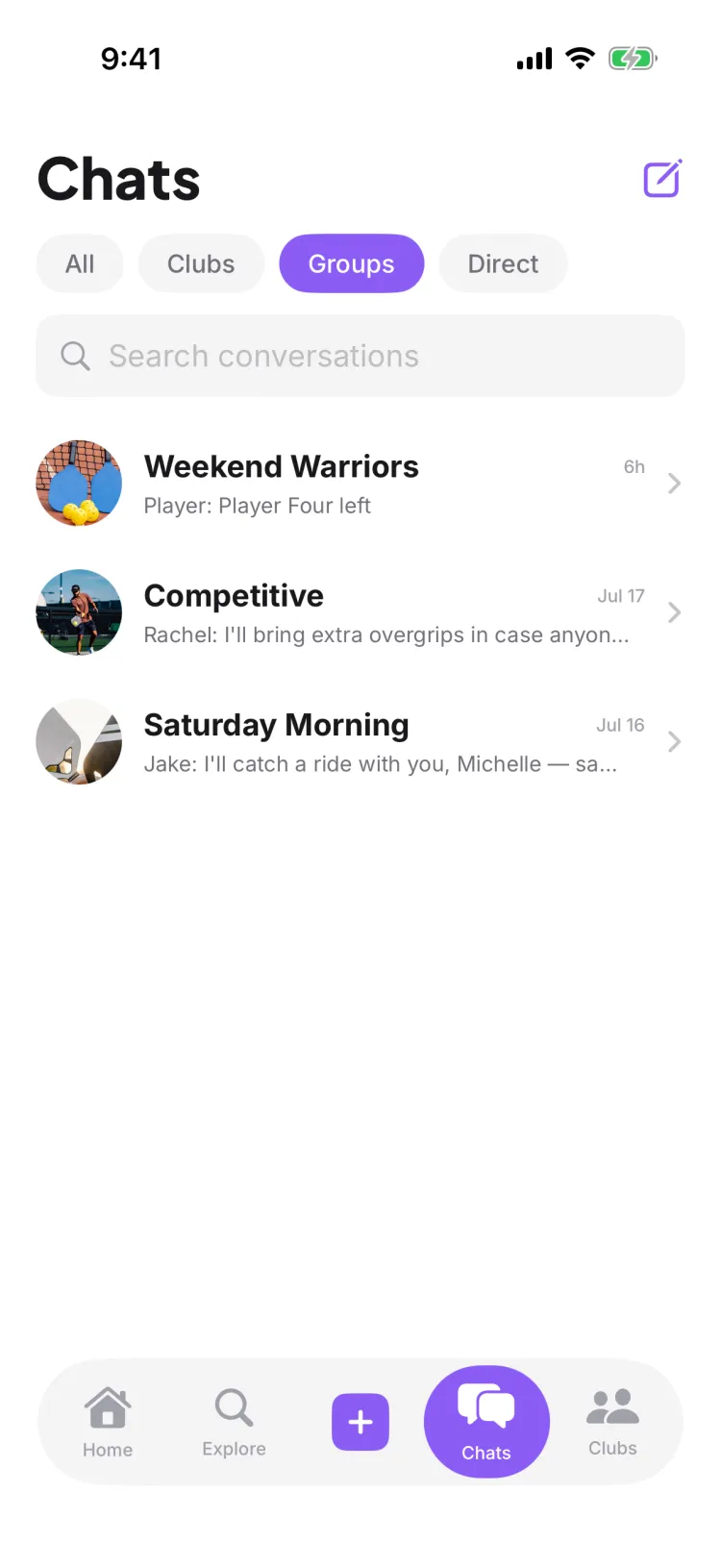
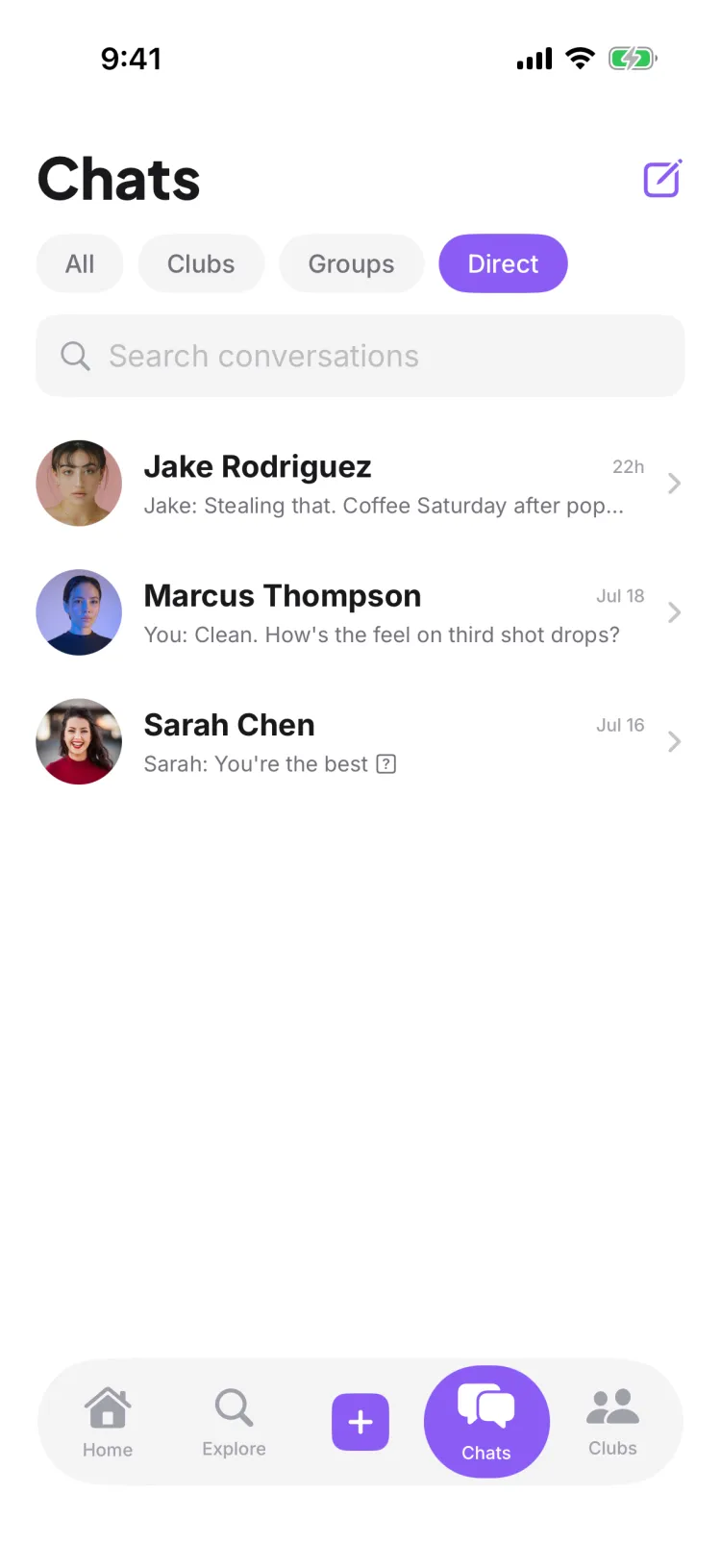
At the top of the Chats tab is a filter bar with four options — the same on iOS and Android:
- All — every conversation, newest activity first.
- Clubs — just your club chats.
- Groups — group chats, both the ones tied to a club group and the ad-hoc ones you started.
- Direct — one-to-one direct messages only.
Tap a filter to narrow the list, and use the search box to find a conversation by name. Direct messages and the ad-hoc group chats you start also match on the other people in them, so you can find a DM by typing your friend's name even if the chat isn't titled. (Club chats and club-group chats match on their own name only — a member's name won't surface them, since a club can have hundreds of members.)
Step 3 — Start a direct message or group chat
Tap the compose button on the Chats tab to start something new:
- Direct message — search for someone by name and tap them. Pikel opens your existing DM if you already have one, or starts a fresh thread. Guests and anyone you've blocked won't appear in the results.
- Group chat — switch to New Group Chat, give it a name, and pick the people you want in it. Handy for a carpool, a doubles crew, or planning a night out that doesn't belong in the whole club's chat.
Club and group chats, by contrast, already exist for everyone in that club or group — you don't create those, you just open them.
Step 4 — React, reply, share photos & @mention
Inside any conversation you've got the tools you'd expect from a modern messenger, and they work the same on both platforms:
- React — add an emoji reaction to a message instead of sending a whole reply.
- Reply — reply to a specific message so it quotes the original, which keeps a busy chat readable.
- Photos — send a picture from your library; Pikel resizes it before uploading so it sends fast.
- @mention — type
@and pick a person to pull them in. Club and group admins and owners also get an @everyone mention for messages the whole room needs to see.
You'll also see a typing indicator when someone's mid-message, and you can edit or delete a message you sent.
Step 5 — Mute a chat that won't stop buzzing
An active club chat is a good problem — until it isn't. Open a conversation's info and set its notification level:
- All — every message notifies you (the default).
- Mentions — silent unless someone @mentions you. The best setting for a busy club chat you still want to keep half an eye on.
- Off — no notifications at all.
You can also mute for a set time — one hour, eight hours, a day, or until you turn it back on — for when you just need a quiet evening without leaving the chat.
Pro tip
Set your loudest club chat to Mentions only and leave your direct messages on All. You'll stop reaching for your phone every time someone posts a meme in the group, but the messages that are actually for you — a partner confirming, an organizer @mentioning the roster — still come through. And keep game logistics in the game's comments, not the club chat: it's where the people playing that game are already looking.
Get started
Pikel is free on iOS and Android — your club, your crew, one place to talk.
Frequently asked questions
What kinds of chats does Pikel have?
Three. Club chats (one per club you're in), group chats (for groups inside a club, plus any group chat you start with a few people), and direct messages one-to-one. The Chats tab sorts them all with an All / Clubs / Groups / Direct filter bar so you can jump straight to the kind you want.
Where do I talk about a specific game?
In that game's comments, not a chat. Game-specific conversation lives on the game itself — Pikel deliberately keeps session talk out of the Chats tab so your club and group chats don't fill up with logistics for one match. Use the chat for the crew, use comments for the game.
Can I react to messages, reply, and send photos?
Yes, on both iOS and Android. You can add an emoji reaction to any message, reply to a specific message so it quotes the original, send a photo from your library, and @mention someone to pull them in. Club and group admins and owners also get an @everyone mention.
How do I quiet a chat that won't stop buzzing?
Mute it. Each conversation has notification levels — All, Mentions only, or Off — and you can also mute for a set time: one hour, eight hours, a day, or until you turn it back on. Mentions-only is the sweet spot for a busy club chat: silence unless someone @mentions you.
Who can I send a direct message to?
Search for anyone by name from the compose screen and start a one-to-one DM, or pick a few people and a name to start a group chat. Guests and anyone you've blocked don't show up in the search results.