How to RSVP to a Pickleball Game


Getting into your first game on Pikel takes one tap. When you're invited to a game — by your club, your group, or an organizer — it shows up waiting for your answer, and you either grab your spot or, if it's already full, slot onto a fair waitlist that promotes the next person the moment a seat opens. Here's the whole flow.
Step 1 — Find the game that needs your RSVP
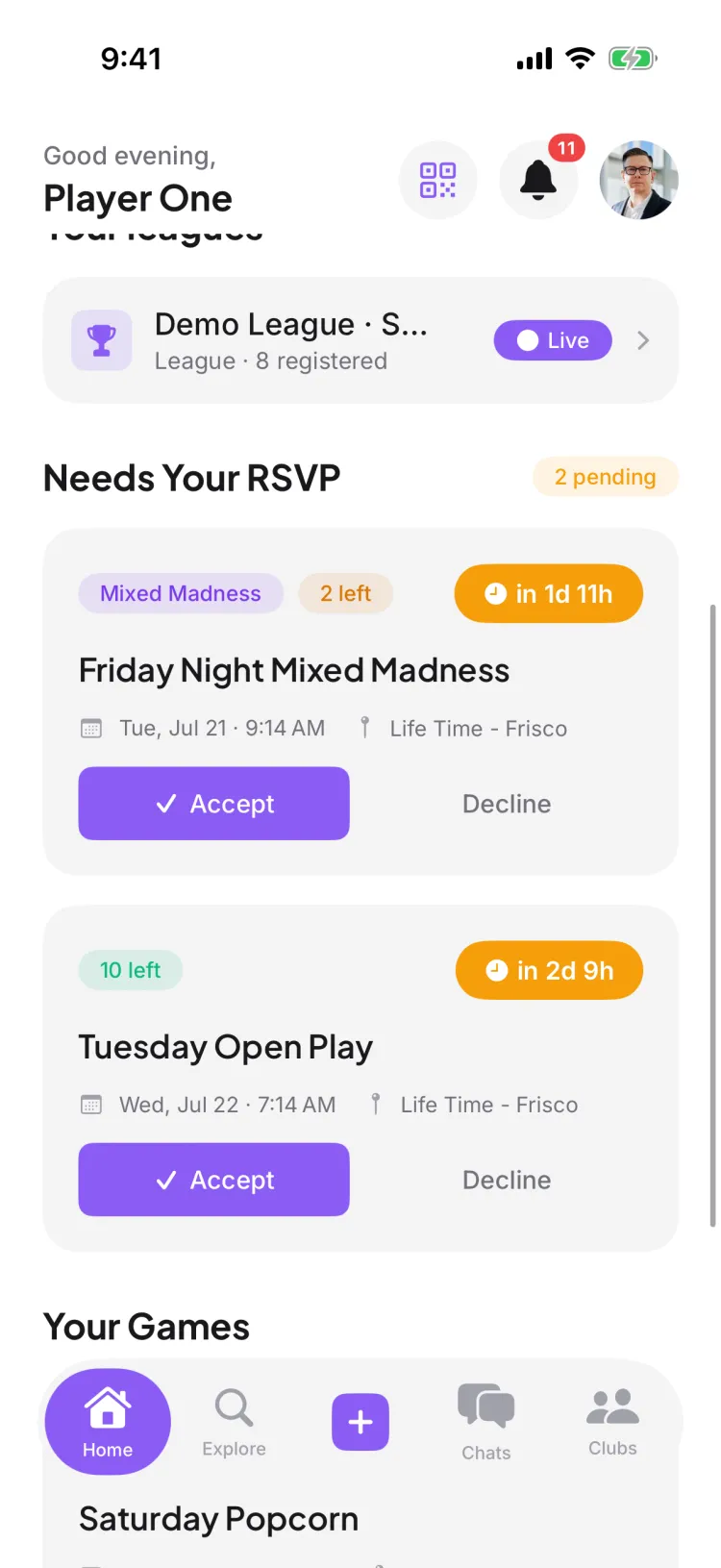
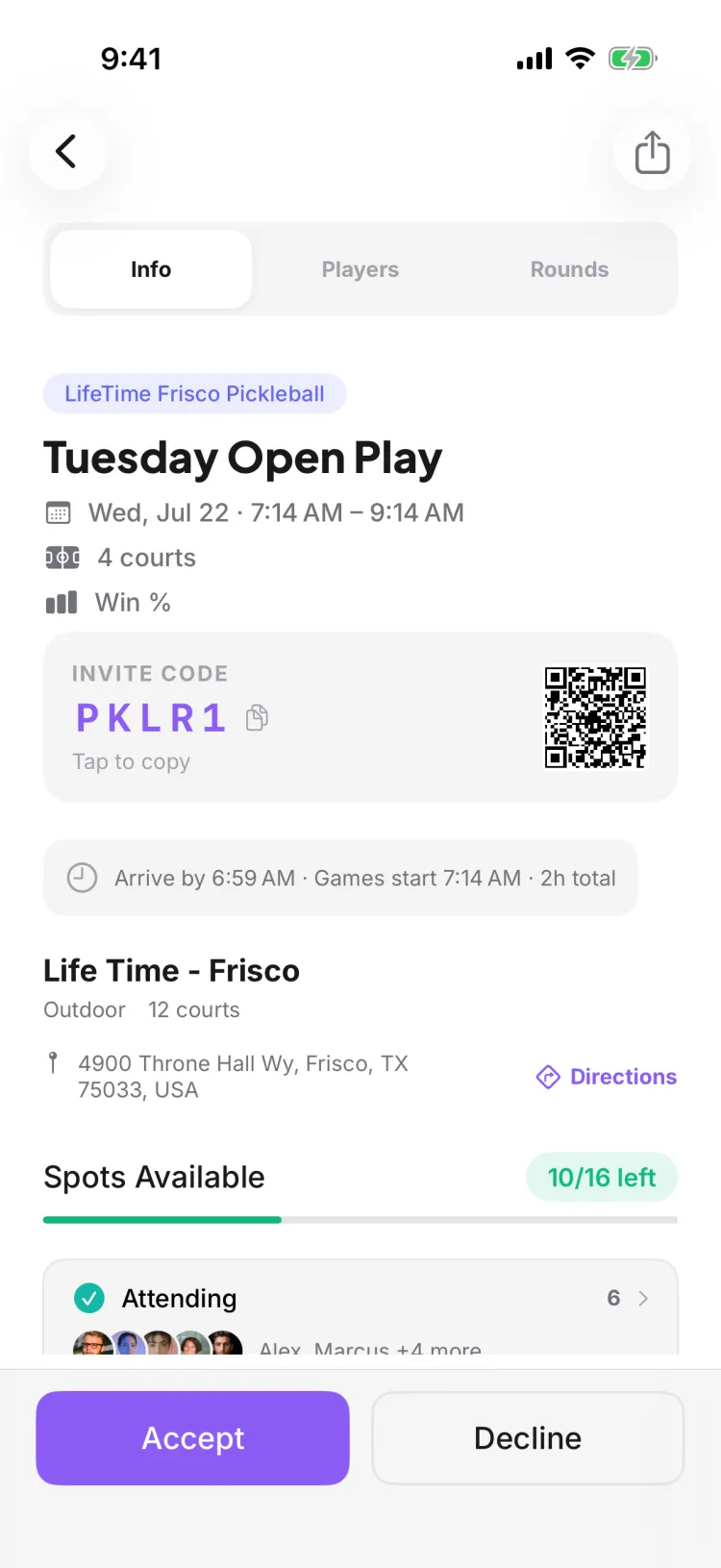
Open Pikel and look at your Home screen. Games you've been invited to but haven't answered yet gather under a "Needs Your RSVP" section — each one shows the game with Accept and Decline right on the card, so you can answer without going anywhere. Tap the game itself if you'd rather see the full details first: who's playing, where, and how many spots are left.
Step 2 — Tap Accept to lock in your spot
Hit Accept and you're in. The button flips to a teal "You're Going!" confirmation so there's no guessing whether it went through. That's the whole RSVP — no forms, no back-and-forth.
If the game overlaps another one you've already accepted, Pikel will flag the clash so you don't accidentally double-book yourself for the same time slot.
Step 3 — Game full? Land on the fair waitlist
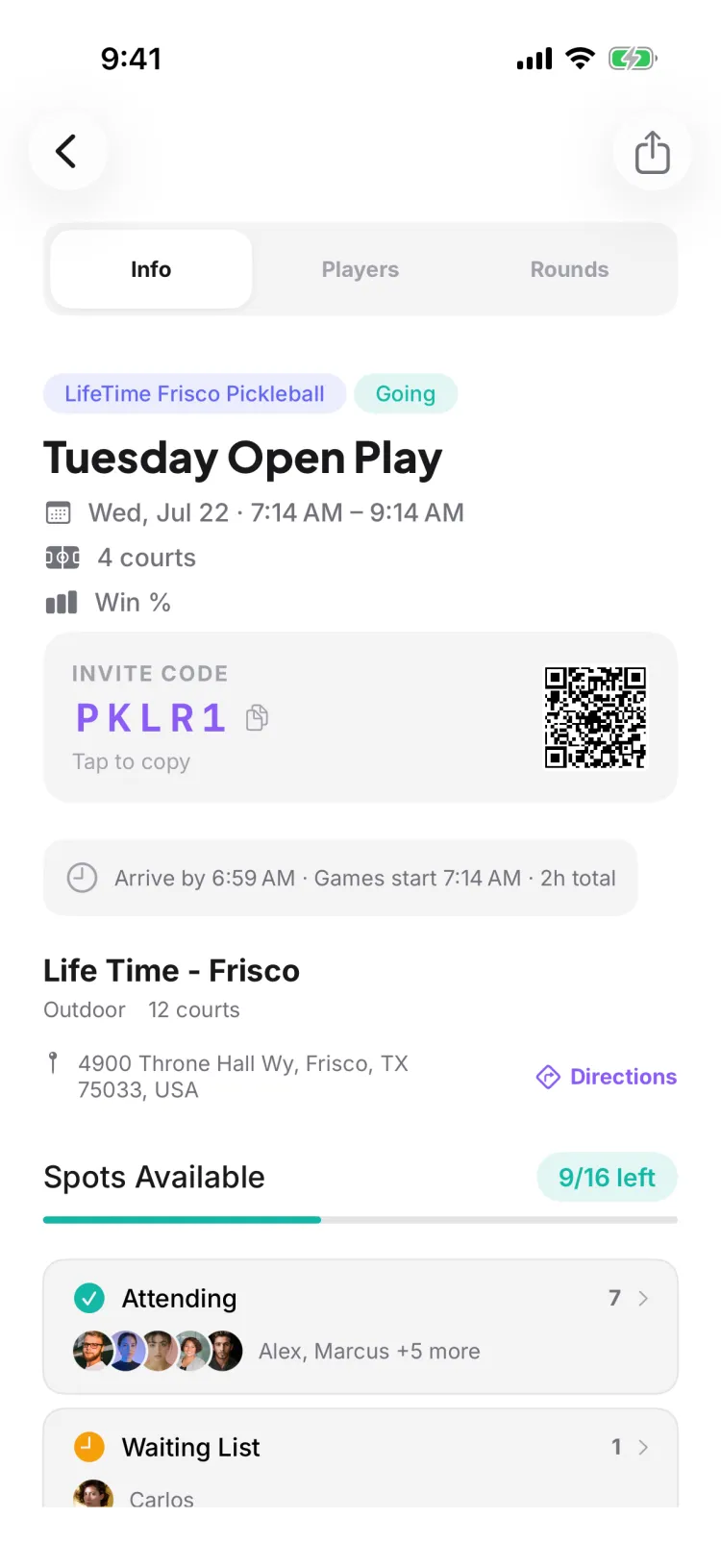
If every spot is already taken, your RSVP puts you on the waitlist instead of turning you away — you'll see an "On Waitlist" status with your position number. This is the fair part: when someone who's in cancels, Pikel automatically promotes the next person on the waitlist into the open spot and sends them a push notification. You don't have to sit and refresh — if a seat opens, it comes to you.
Step 4 — Change of plans? Cancel or leave the waitlist
Life happens. If you're going and can't make it, open the game and tap Cancel RSVP. If you're on the waitlist and want out, tap Leave Waitlist. One thing worth knowing: the moment you cancel a confirmed spot, it's handed to the next person on the waitlist — so if the game has filled up, you may not get that spot back. Cancel early when you can, so a teammate gets a real shot at playing.
Pro tip
Watch for an "RSVP opens in" countdown on popular games. Some organizers set RSVPs to open at a specific time so every player gets the same shot at limited spots — nobody wins just by being the first to open the app. Until the window opens you can't accept yet (you can decline early), so set a reminder for when it drops and be ready to tap Accept the second it's live.
Get started
Pikel is live on iOS and Android — find a game, tap Accept, go play.
Frequently asked questions
How do I RSVP to a pickleball game?
Open the game and tap Accept. Your spot locks in and the game flips to a teal "You're Going!" confirmation, so you always know you're in. You can also Accept straight from the "Needs Your RSVP" card on your Home screen without opening the game.
What happens if the game is already full?
You land on the waitlist instead of losing out. If someone who's in cancels, Pikel automatically promotes the next person on the waitlist and sends them a push notification — so a full game can still open up for you without you having to keep checking.
Can I change my mind after I RSVP?
Yes. If you're going, tap Cancel RSVP; if you're waitlisted, tap Leave Waitlist. Heads up: when you cancel a confirmed spot it's handed straight to the next person on the waitlist, so you may not get it back if the game has filled up.
What's the "RSVP opens in" countdown on some games?
Some games open RSVPs at a set time so everyone gets a fair shot at limited spots — instead of the seats going to whoever happens to be looking at their phone first. Until the window opens you'll see an "RSVP opens in" countdown. You can decline early, but you can't accept until the moment it opens for everyone.
Where do I find games that need my answer?
On your Home screen, under the "Needs Your RSVP" section. Every game you've been invited to but haven't answered yet sits there with Accept and Decline right on the card.