How to Manage Your Pikel Notifications


Pikel pings you for real reasons — a game you said yes to is about to start, someone RSVP'd to an event you're hosting, a round-robin score just landed, a new message hit a club chat. But "useful" and "too much" are personal, and they change with the season. The good news: Pikel gives you a single screen where you decide exactly which of those pings reach you, plus finer controls for a noisy club or one chatty conversation. Here's the whole map.
Step 1 — Open your Notification Settings
There are two doors to the same room.
- From the bell (iOS): tap the bell on your Home screen to open Notifications, then tap the gear in the top corner. That takes you to Notification Settings.
- From your profile (iOS + Android): open Profile and tap Notifications. Same screen.
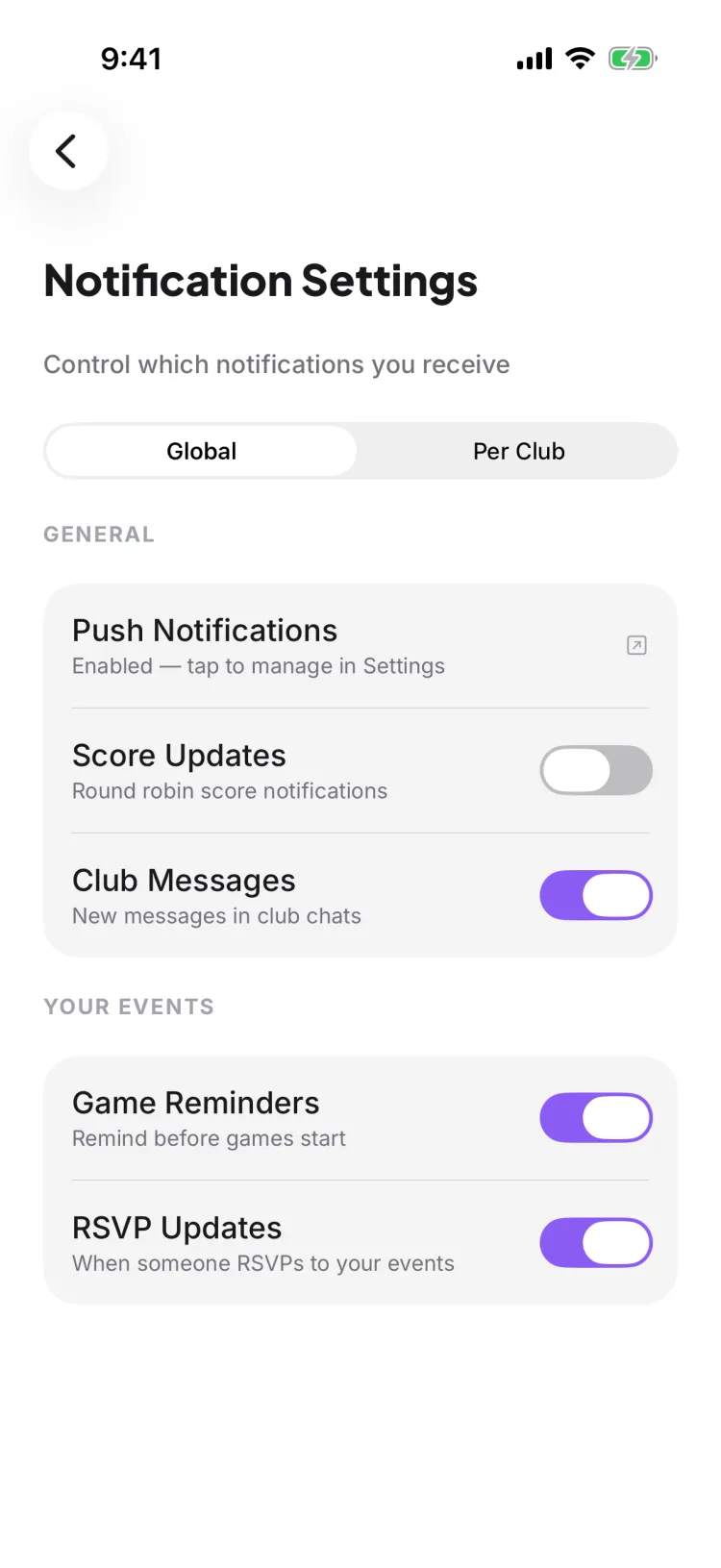
At the top you'll see the header Notification Settings with the line "Control which notifications you receive," and a segmented control with two tabs: Global and Per Club. Global is where you set your defaults; Per Club is where you make exceptions. Start on Global.
Step 2 — Check the master switch (system push)
The first row under the GENERAL section is Push Notifications, and it's not a toggle — it's a status you tap. It reads your phone's real permission and shows either "Enabled — tap to manage in Settings" or "Disabled — tap to enable in Settings."
This is the master switch, and it lives in your phone's operating system, not in Pikel. If it says Disabled, none of the toggles below it matter — your phone is blocking every push. Tap the row and Pikel sends you straight to its entry in your phone's Settings, where you can flip notifications back on. Return to Pikel and the status updates itself.
So the mental model is simple: your phone decides whether Pikel can notify you at all; the toggles below decide which notifications you actually want.
Step 3 — Choose which notifications you get
With the master switch on, the rest of the Global tab is four independent toggles, grouped into two sections. Flip any of them and Pikel saves it for you automatically — there is no Save button.
GENERAL
- Score Updates — "Round robin score notifications." Turn off if you don't need a ping every time a round-robin score is posted.
- Club Messages — "New messages in club chats." Turn off if club chatter is what's overwhelming you.
YOUR EVENTS
- Game Reminders — "Remind before games start." This is the one most people reach for. Leave it on so you never forget a game you committed to; turn it off if you don't want the pre-game nudge.
- RSVP Updates — "When someone RSVPs to your events." Useful when you're the organizer watching a roster fill; noise if you're not.
Because each toggle is independent, you can keep your Game Reminders on while switching Club Messages off — quiet the chatter without missing the games.
Step 4 — Quiet just one club (Per Club)
Maybe it's not all notifications — it's one particular club that won't stop buzzing. That's what the Per Club tab is for.
Tap Per Club and you'll see every club you belong to listed out, each one labelled "Using global settings." That label means the club is simply following the defaults you set on the Global tab. Tap a club to open it and override those defaults for that club alone — turn things down there without touching your global choices. Your competitive Tuesday club can stay loud while the big casual club you dip into goes quiet.
This is a per-club override. Pikel also has per-group notification settings (for the subgroups inside a club), which live on each group's own screen — see the groups guide linked below if that's what you're after.
Step 5 — Mute a single conversation
Sometimes the fix is even narrower: one thread is blowing up and you just want an hour of peace. You don't have to touch any of the global settings for that.
Open the conversation and tap its name (the whole title block at the top) to open Chat Info. There you'll find a Notifications control — All, Mentions, or Off — and, just below it, a Mute for… row. Tap Mute for… and pick a duration — 1 hour, 8 hours, 1 day, or Until I turn it back on. Muting only silences that one conversation; your game reminders, RSVP updates, and every other chat keep working normally. Set the level back to All whenever you want it loud again.
Pro tip
Think in layers, biggest to smallest, and you'll never over-mute. Start at the phone level only if you want a true blackout. Use the Global toggles to shape your everyday baseline — most people keep Game Reminders and RSVP Updates on and dial Score Updates and Club Messages to taste. Reach for Per Club when a single club is the problem, and Mute a conversation when it's just one thread on a busy day. That way you turn down the noise without turning off the reminders that actually get you to the court.
Get started
Pikel is live on iOS and Android — set your notifications once and let the app nudge you only when it matters.
Frequently asked questions
I'm getting too many notifications — how do I turn them off?
Open your Notification Settings and stay on the Global tab. Under YOUR EVENTS, switch off Game Reminders to stop the before-game pings; under GENERAL, switch off Score Updates and Club Messages to quiet round-robin scores and club chat. Everything saves the moment you flip a switch — there's no Save button. If you want to silence just one club instead of everything, use the Per Club tab.
Where do I find my notification settings?
Two ways. On iOS, open Notifications (the bell on your Home screen) and tap the gear in the top corner. On both iOS and Android you can also open Profile and tap Notifications. Both land on the same Notification Settings screen with its Global and Per Club tabs.
What's the difference between the toggles in the app and my phone's settings?
Your phone's system permission is the master switch — if it's off, Pikel can't send you anything. The GENERAL section shows Push Notifications with its live status; tap it to jump straight to your phone's Settings. The other toggles (Score Updates, Club Messages, Game Reminders, RSVP Updates) are Pikel's own filters that decide which kinds of pushes you get once the master switch is on.
Can I keep one club loud and mute another?
Yes. On the Notification Settings screen, tap the Per Club tab. It lists every club you're in, each marked "Using global settings" until you change it. Tap a club to override your global defaults just for that one — so your competitive club stays loud while a casual one goes quiet.
How do I silence a single chat without touching everything else?
Open the conversation and tap its name at the top to open Chat Info. It has a Notifications control (All / Mentions / Off) and a 'Mute for…' row — tap 'Mute for…' and choose 1 hour, 8 hours, 1 day, or until you turn it back on. This only affects that one conversation — your game reminders and RSVP updates keep coming.